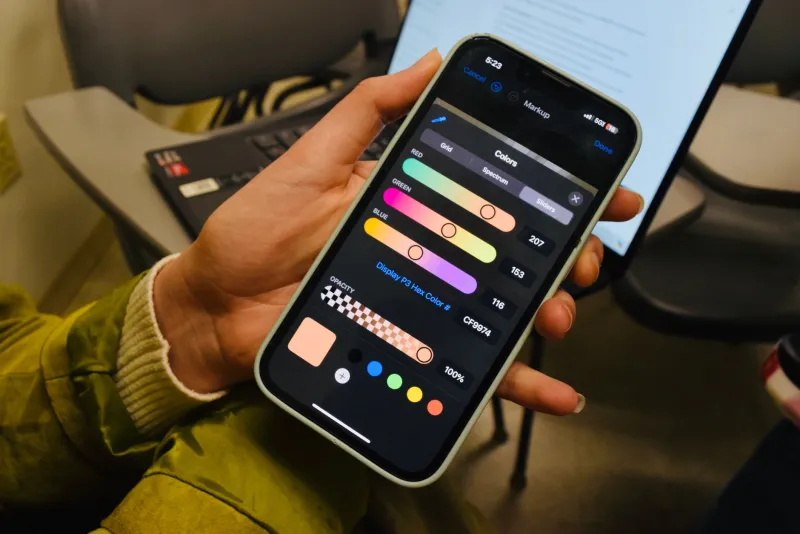
Lost in Translation: Why RGB and Hex Values Don't Always Mean the Same Color

Here's a scenario that plays out in design teams across the country every single week: a designer hands off a comp with a beautiful brand blue. The developer pulls the RGB values from the spec, converts them to hex, drops it into the stylesheet, and ships it. Then the designer opens the live site and immediately says, "That's not the right color."
Both people are technically correct. And that's exactly the problem.
RGB and hexadecimal are two ways of writing the same thing — or at least, they're supposed to be. In practice, the road between them is full of small potholes that can add up to a surprisingly visible color mismatch. Understanding why this happens is the first step to making sure your team stops speaking two different color languages.
The Math Is Simple. The Execution Isn't.
The conversion itself isn't complicated. Each RGB channel — red, green, blue — holds a value from 0 to 255. To convert to hex, you translate each channel into a two-digit base-16 number. RGB(255, 99, 71) becomes #FF6347. Clean, direct, reversible.
The trouble starts when your RGB values aren't whole numbers.
Design tools — Figma, Adobe XD, Sketch, even older versions of Photoshop — sometimes work with fractional RGB values under the hood. When you look at the color panel, you might see RGB(120, 80, 200), but internally the tool could be storing something like RGB(120.4, 79.7, 200.2). When it rounds for display, you get clean integers. When it exports or converts to hex, the rounding can go a different direction depending on the tool's logic.
Round 120.4 down and you get #78. Round it up and you get #79. That's a one-digit difference in a single channel — and it shifts the color by a small but sometimes perceptible amount, especially in muted palettes or near-neutral tones where the human eye is more sensitive to subtle shifts.
How Rounding Errors Snowball Across a Design System
One slightly-off hex code is annoying. Twenty of them, scattered across a component library, is a disaster.
Design systems are built on relationships between colors. Your primary button color, your hover state, your disabled state — they're all calculated relative to each other. When the base color is off by a single hex digit, every derived color inherits that error. Tints, shades, and semantic color tokens all drift from their intended values.
This is especially brutal when you're working with programmatically generated palettes. Tools that auto-generate accessible color scales often start from a base hex code and calculate the rest mathematically. Feed them a slightly corrupted input, and the entire scale is wrong — but consistently wrong in a way that's hard to spot without directly comparing to your source of truth.
Teams that use design tokens (a practice that's become standard in larger US product orgs) face another layer of risk. If a token is defined in RGB in the design file but gets written to JSON as hex during the export process, any rounding that happens during that conversion is now baked into your token library. It'll propagate to every platform that consumes those tokens: web, iOS, Android.
Why Different Tools Disagree
Here's something worth knowing: not all color tools use the same rounding conventions. Some round to the nearest integer. Some always round down (floor). Some round up (ceiling). Some use "banker's rounding" — a method that rounds 0.5 toward the nearest even number to reduce statistical bias.
None of these approaches is wrong. But when your designer uses Figma, your developer uses a hex converter they Googled, and your design token pipeline uses a Node.js library, you've got three tools that might all handle the same fractional RGB value differently.
Browsers add yet another variable. Chrome, Firefox, and Safari all handle subpixel color rendering slightly differently, and display calibration on Mac versus Windows machines can make the same hex code look noticeably different. That said, actual conversion math in modern browsers is consistent enough that it's rarely the culprit — the damage usually happens before the code ever reaches a browser.
Troubleshooting Guide: Is a Conversion Error Your Problem?
When someone on your team says "the color looks off," here's how to figure out if a conversion error is the culprit:
Step 1: Compare hex values directly. Don't eyeball it on screen. Pull the hex code from the live site using your browser's DevTools (inspect the element, check the computed styles) and compare it character-by-character against the hex code in your design file. A one-digit mismatch anywhere is your smoking gun.
Step 2: Work backward to RGB. Convert both hex codes to RGB and look at where the channel values diverge. If you see a difference of 1 in any channel, you've likely got a rounding error. If you see a difference of 5 or more, something else is going on — possibly a color profile issue or a copy-paste error.
Step 3: Check your export pipeline. If you're using design tokens or an automated handoff tool, log the values at each stage of the export. Add a step that outputs both the RGB source and the hex output so you can audit them side by side. Catching it here prevents the error from propagating.
Step 4: Validate in multiple tools. Run your RGB value through two or three hex converters and compare the results. If they disagree, you've identified a rounding inconsistency. Use the result that matches your design tool's native hex output as your canonical value.
Step 5: Lock hex values in your source of truth. If a color matters enough to be in your brand guidelines, the hex code should be defined there explicitly — not derived on the fly from RGB. Store hex as your primary format and treat RGB as a secondary representation.
Practical Fixes for Keeping Your Team Aligned
The best long-term solution is agreeing on a single source of truth for color values and establishing a clear rule about which format wins when there's a conflict.
For most web teams, hex is the practical primary format. It's what CSS expects, it's what browsers speak natively, and it's easy to copy and paste without introducing conversion steps. If your designers are working in RGB, ask them to also record the hex value in the design file and flag it as the authoritative reference.
If your workflow requires RGB — for CSS custom properties using the rgb() function, for design token systems that need separate channel values, or for canvas-based JavaScript work — make sure you're converting from a verified hex code rather than the other way around. Hex to RGB is a lossless operation when the hex value was defined intentionally. RGB to hex introduces rounding risk.
Finally, build a quick color audit into your QA checklist. Before any major release, spot-check five to ten key colors on the live site against the design file. It takes ten minutes and it catches the kind of quiet drift that slowly erodes a brand's visual consistency without anyone noticing until it's become a real problem.
Your colors should mean the same thing to everyone on your team. A little process hygiene goes a long way toward making sure they do.